Build an ESP32 desk display that tracks your Claude Code usage in real time
Contents
- What the display shows
- Why this needs hardware at all
- Where the numbers come from
- Prerequisites
- Step 1: Buy the board
- Step 2: Wire it, if your display is separate
- Step 3: Make Claude Code write the numbers out
- Step 4: Put the file on your network
- Step 5: Flash the board
- How the firmware draws it
- ESP32 traps that will bite you
- What you give up
- Questions people ask
- Would I build it again
It's a specific kind of annoying, hitting your Claude Code session limit twenty minutes into something. Not because the limit's unreasonable. Because you had no idea you were close.
You can run /usage and find out, sure. But that means stopping, reading a screen, then finding your place again, which is the exact small interruption you were trying to avoid by using Claude Code in the first place. So you don't run it. And then you hit the wall.
Here's what I built instead: a $12 ESP32-C3 with a 1.28 inch round LCD, sitting to the left of my monitor, showing one number and one line of text. It's an evening's work, it needs no API key, and nothing it touches leaves your network.
What the display shows
Two screens. Tap the glass to switch.
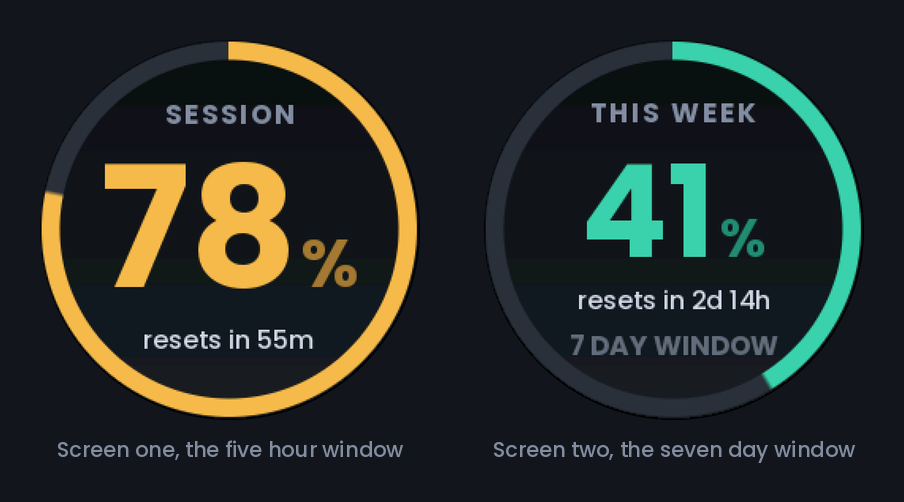
Screen one is the rolling five hour window, screen two is the seven day one. The ring around the rim fills up as you spend the window, and the whole face is colour coded: teal under 70%, amber up to 90%, red past that.
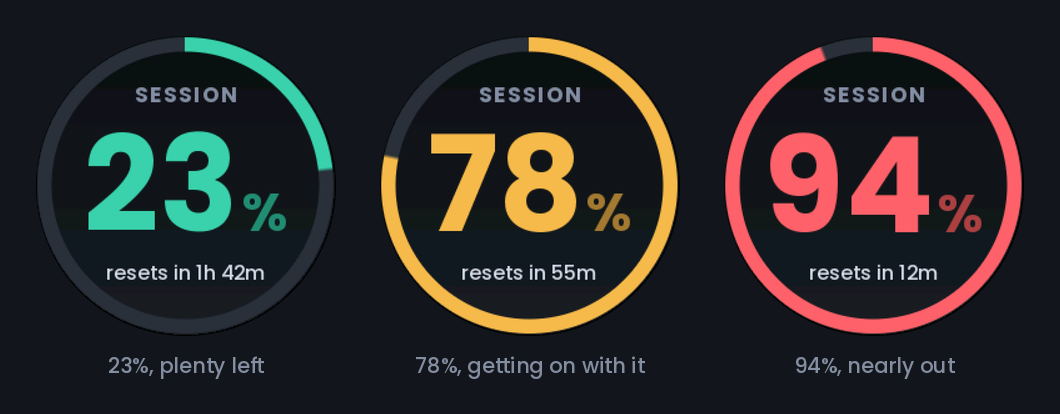
The digits aren't really the point though. You catch the colour out of the corner of your eye, and the number's there for when the colour makes you actually look. That's the whole argument for putting this on hardware instead of in a terminal.
Why this needs hardware at all
Three ways to see the same numbers, and they fail in different ways.
/usage | Status line | This display | |
|---|---|---|---|
| Interrupts you | Yes, you have to run it | No | No |
| Visible without looking for it | No | Technically | Yes |
| Still visible when the terminal isn't focused | No | No | Yes |
| Tells you when the window resets | Yes | If you write it in | Yes |
| Cost | Free | Free | About $12 |
| Works when the laptop's asleep | No | No | Shows the last reading, marked stale |
The status line is the interesting comparison, because it's free and it's genuinely good. Problem is it lives at the bottom of the window you're already staring at, which is precisely where your eye has learned to skip. Two feet to the left, at a different depth, in a colour that changes, is a different channel entirely.
If that argument doesn't land for you, honestly, stop here and put the numbers in your status line. The script below does that too, and it's four lines of jq.
Where the numbers come from
This is the part that took me longest to work out, and it's got nothing to do with the hardware.
Your rate limit numbers aren't sitting in a file anywhere. /usage goes and fetches them, then draws bars. Claude Code does write session transcripts under ~/.claude/projects with token counts in them, and there are good tools that add those up, but a token count isn't a percentage of your plan, and turning one into the other means guessing at a limit Anthropic doesn't publish.
The actual answer is the status line.
Claude Code lets you run any script as your status bar. It hands your script a JSON blob of session data on stdin and prints whatever comes back. Buried in that blob:
{
  "rate_limits": {
    "five_hour": { "used_percentage": 23.5, "resets_at": 1789350000 },
    "seven_day": { "used_percentage": 41.2, "resets_at": 1789857600 }
  }
}
A percentage and a unix timestamp, for both windows, straight from the source. That's the whole project. Everything after this is plumbing.
Two catches before you get excited. rate_limits only turns up for Claude.ai Pro and Max subscribers, and only after the session has had its first API response. On an API key you'll never see it.
Prerequisites
- An ESP32-C3 with a GC9A01 round display, about $12, see Step 1
- A data USB-C cable, not a charge-only one
- Claude Code on a Pro or Max plan
jq, and Python 3, which macOS already has- An evening
Step 1: Buy the board
Two ways to buy this, and the difference matters more than the price does.
The all-in-one module. An ESP32-C3 and a 1.28 inch round panel on one board, already wired, about the size of a big watch face. This is the one I bought, the JCZN ESP32-2424S012. Nothing to solder, nothing to wire, nothing to get wrong. Some versions have a CST816 capacitive touch layer and some don't, but the firmware pokes the I2C bus at boot and falls back to the BOOT button either way, so you don't need to know which one showed up.
A devkit plus a breakout. A bare ESP32-C3 devkit and a separate GC9A01 module. This is your route if you already own an ESP32 and want to start tonight. Eight jumper wires, and no soldering if your breakout came with headers.
| Part | What to search for | Roughly |
|---|---|---|
| All-in-one | JCZN ESP32-2424S012, or "ESP32-C3 1.28 round display" | $12 |
| Or, devkit | ESP32-C3-DevKitM-1, or any C3 board | $6 |
| Or, display | GC9A01 1.28 inch 240x240 round SPI | $7 |
| Cable | USB-C data cable | You own one |
That cable row isn't filler. A charge-only USB-C cable is the single most common reason a board never shows up as a serial port, and every symptom it produces looks exactly like a dead board.
Step 2: Wire it, if your display is separate
Skip this bit entirely on the all-in-one. Its pins are already in config.h.
Three things to watch for, all of which cost me time.
SDA isn't I2C here
GC9A01 breakouts label the SPI data line SDA and the clock SCL, which is I2C naming on an SPI part. Confusing, but SDA goes to your MOSI pin. There's no MISO at all, because the panel never talks back.
Mind the ESP32-C3 strapping pins
GPIO 2, 8 and 9 get read at boot to decide how the chip starts up. They're fine as outputs once you're running, but if something external holds one at the wrong level while the board's coming up, it won't boot. And it looks exactly like a dead board.
That's why panel reset goes on GPIO 1 in the diagram instead of the GPIO 8 you might otherwise grab. If you're wiring it yourself, PIN_LCD_RST in config.h is the one line you change. It's -1 for the all-in-one, whose panel reset is tied to the module reset rather than to a GPIO.
Long wires want a slower clock
The firmware runs SPI at 40 MHz, which is fine on a board or on short jumpers. On 20 cm dupont wires you might get noise, tearing, or nothing at all. Drop LCD_SPI_HZ to 20000000, then 10000000 if you have to.
Step 3: Make Claude Code write the numbers out
The status line script does two jobs. It prints a status line like any other, and on the way past it writes the rate limit block to a file.
#!/bin/bash
set -uo pipefail
SNAPSHOT="$HOME/.claude/usage-snapshot.json"
input=$(cat)

five_pct=$(echo "$input" | jq -r '.rate_limits.five_hour.used_percentage // empty')
five_at=$(echo "$input"  | jq -r '.rate_limits.five_hour.resets_at // empty')
week_pct=$(echo "$input" | jq -r '.rate_limits.seven_day.used_percentage // empty')
week_at=$(echo "$input"  | jq -r '.rate_limits.seven_day.resets_at // empty')

if [ -n "$five_pct" ] || [ -n "$week_pct" ]; then
  tmp="${SNAPSHOT}.tmp.$$"
  {
    printf '{\n  "updated_at": %s' "$(date +%s)"
    [ -n "$five_pct" ] && printf ',\n  "five_hour": { "used_percentage": %s, "resets_at": %s }' \
      "$five_pct" "${five_at:-0}"
    [ -n "$week_pct" ] && printf ',\n  "seven_day": { "used_percentage": %s, "resets_at": %s }' \
      "$week_pct" "${week_at:-0}"
    printf '\n}\n'
  } > "$tmp" && mv -f "$tmp" "$SNAPSHOT"
fi

model=$(echo "$input" | jq -r '.model.display_name // "claude"')
dir=$(echo "$input" | jq -r '.workspace.current_dir // ""')
line="[$model] ${dir##*/}"
[ -n "$five_pct" ] && line="$line  ${five_pct%.*}% session"
echo "$line"
Save it as ~/.claude/statusline-usage.sh, chmod +x it, and point your settings at it:
{
  "statusLine": {
    "type": "command",
    "command": "~/.claude/statusline-usage.sh",
    "refreshInterval": 10000
  }
}
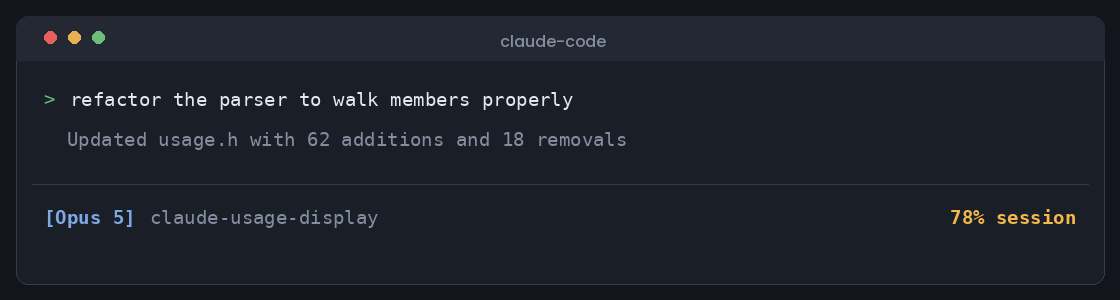
Two details in there are doing real work.
Every read is guarded with // empty. Each window vanishes on its own once it expires, and the whole object's missing on an API key. A run with no data leaves the old snapshot alone rather than wiping it.
It writes to a temp file, then moves it into place. mv inside one filesystem is atomic, so the server can't ever catch a half-written file. Sounds fussy, matters a lot when one process is writing every few seconds and another is reading every thirty.
And refreshInterval isn't optional. Without it the script only runs on events: a new assistant message, a compaction, a permission change. So the second you stop typing, the script stops running and the countdown on the display freezes at whatever it last saw. With it, the numbers keep ticking while you're reading docs with your hands off the keyboard.
Step 4: Put the file on your network
Forty lines of Python. Reads the snapshot, adds the server's own clock, serves it on one endpoint.
def read_snapshot() -> dict:
    now = int(time.time())
    payload = {"now": now, "updated_at": 0}
    try:
        with open(SNAPSHOT, "r", encoding="utf-8") as fh:
            data = json.load(fh)
    except (FileNotFoundError, OSError, json.JSONDecodeError):
        return payload

    payload["updated_at"] = int(data.get("updated_at", 0) or 0)
    for key in ("five_hour", "seven_day"):
        window = data.get(key)
        if not isinstance(window, dict) or "used_percentage" not in window:
            continue
        resets_at = int(window.get("resets_at", 0) or 0)
        if resets_at and resets_at <= now:
            continue
        payload[key] = {
            "used_percentage": float(window["used_percentage"]),
            "resets_at": resets_at,
        }
    return payload
Run it and it prints the URL to drop into config.h.
Sending the server's own clock is a small trick that saves a lot of grief. resets_at is a unix timestamp, so turning it into "resets in 55m" means the board has to know what time it is, and the board has no clock. Usual answer is NTP, which drags in a timezone string, DST rules, and one more thing to fail on a network that blocks UDP 123. Send now along with the data and the board just counts milliseconds from the last poll. Drift over thirty seconds doesn't matter to a number shown in minutes.
That resets_at <= now check took me a while to see the point of. It's in the traps below.
Step 5: Flash the board
Install the ESP32 core and the display library, set your WiFi, compile, upload. The project ships a flash.command you double-click that does all of it, including installing arduino-cli locally so nothing touches your system.
Two settings in there are worth knowing about even if you never open the file.
CDCOnBoot. On ESP32-C3 boards where the USB port goes straight into the chip instead of through a serial bridge, Serial output goes nowhere unless the build routes it to USB CDC. You end up with a board that flashes perfectly and then says absolutely nothing. The script figures out the right value by checking whether the port came up as a usbmodem or a usbserial.
PartitionScheme=huge_app. The anti-aliased font is 71 KB of flash and the WiFi stack isn't small either. The default layout is tight enough that you'll hit the ceiling.
Before any of that, if you want to see the screens without owning a board yet, there's a preview tool that renders every state to a PNG on your computer. More on why that exists in a second.
How the firmware draws it
Standard Arduino ESP32 project: connect to WiFi, HTTP GET, parse, draw, sleep. Three bits are worth pulling out, and all three apply to any ESP32 display project, not just this one.
No framebuffer. The obvious way to draw anti-aliased text on a gradient is to render into a buffer and push the whole buffer to the panel. A 240x240 16-bit framebuffer is 115 KB, and an ESP32-C3 has 400 KB of RAM total with the WiFi stack already taking a healthy bite. So everything draws straight to the panel instead, and the background colour under any given pixel gets recomputed from a formula whenever type needs something to blend against. The formula is one interpolation, the gradient's vertical, and it costs basically nothing.
Four bits of coverage per pixel. The stock Adafruit GFX fonts store one bit per pixel. At 80 pixels tall that means visible stair-steps down every curve, and a 6 that just looks broken. So the font gets generated with four bits of coverage per pixel and the firmware alpha-blends each glyph against whatever's behind it. Poppins, five sizes, digits and a small character set: 71 KB of flash, which on a 4 MB part is free.
The preview tool is the firmware. This is the bit I'd do again on any embedded project. All the drawing code sits in a header that talks to five little hooks: set a pixel, draw a horizontal line, convert a colour, start and end a write. The sketch wires those to the display driver. A desktop program wires them to an image buffer and writes a PNG.
c++ -O2 -o tools/preview tools/preview.cpp -lz && ./tools/preview out.png
That gets me every screen, including the ones I can't easily produce on purpose: the window ticking over to zero, the server unreachable, 112% behind a spend limit, the reading going stale. The PNG runs through the same 16-bit colour conversion the panel does, so what I'm looking at is what the glass shows. I changed the whole palette four times and never flashed the board once to check.
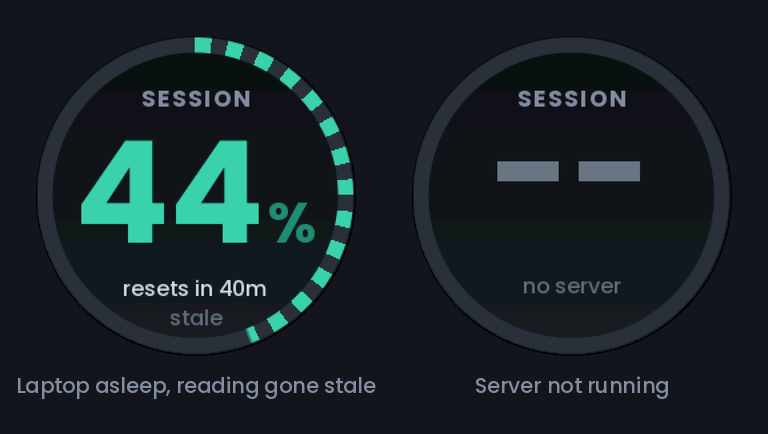
Same binary also runs the JSON reader's checks, so you can't look at the screens without testing the parser too. That was on purpose. A test file you have to remember to run is a test file that rots.
ESP32 traps that will bite you
Every one of these cost me time, roughly in this order.
A stale window shows yesterday's number forever. Claude Code drops a rate limit window from its data once that window expires. It doesn't zero it. So if you stop working at 60% and come back three hours later, the last snapshot still says 60%, for a window that no longer exists. But the counter can't move without Claude Code running, and running it would have written a fresh snapshot, so an expired window really is empty. Both the server and the firmware drop it. This is the only bug in the whole project that gives you a believable wrong answer instead of an obvious one, which makes it the only one worth real care.
.local hostnames don't resolve on an ESP32-C3. http://my-mac.local:8787 works perfectly from your browser and not at all from the board, because there's no mDNS resolver in the firmware unless you add one. Use the IP. Then give the machine a DHCP reservation, or the IP changes and you get to debug this a second time.
ESP32-C3 has no 5 GHz radio. If your SSID is 5 GHz only, the board sits there failing to connect and tells you nothing useful about why. Catches people who've never done an ESP32 project, and catches people who just moved house.
Searching JSON for a key isn't parsing JSON. My first reader found "five_hour" with a substring search. Works great right up until a document has that key nested somewhere else, at which point you quietly read the wrong number. I rewrote it to walk the object's members properly, which is thirty more lines, and added the nested case to the checks. A parser bug that hands back a believable number is worse than one that crashes.
Charge-only USB-C cables. Saying it twice on purpose. The board doesn't enumerate, no serial port appears, and every guide you find will have you checking drivers and holding BOOT while tapping RESET for an hour.
40 MHz SPI on long jumpers. Covered in Step 2. Fine on the all-in-one board. On dupont wires it gives you a display that works intermittently, which is worse than one that doesn't work at all, because you'll spend the evening blaming your code.
What you give up
It only knows what your laptop knows. Usage from another machine, or from claude.ai in a browser, doesn't show up. The status line reports the session on the machine it's running on, full stop.
It's one more thing on a shelf that needs power. About 100 mA over USB. If your desk is already a nest of cables, this isn't helping.
The limit itself is still a black box. The display tells you what percentage of the window you've spent because Claude Code tells it that. Neither of us can tell you what the window is actually measured in.
Questions people ask
Does this work with a Claude API key instead of a Pro or Max subscription?
No. The rate_limits block only shows up for Claude.ai Pro and Max subscribers, because only a subscription has a session window to report on. With an API key the whole object is missing, and the display says no limit data instead of guessing.
Which ESP32 board should I buy for this?
Any ESP32-C3 with a GC9A01 240x240 round SPI display. Easiest is the all-in-one JCZN ESP32-2424S012, which is the chip and the panel on one board with nothing to wire. A bare ESP32-C3 devkit plus a GC9A01 breakout costs about the same and works fine, you just have eight jumper wires to deal with.
Can I use an ESP32-S3 or a classic ESP32 instead of the C3?
Yep. Arduino_GFX handles all of them, and nothing in the firmware is C3 specific apart from the pin numbers in config.h and the strapping pin warning. An S3 gives you more RAM and a second core you won't need here. A classic ESP32 works too and just drinks more power.
Does the board send anything to Anthropic?
No. It talks to a small server on your own computer over your own network, and that server reads a file Claude Code already wrote locally. There's no API key in the project because there's no API call in the project.
Why not just show the numbers in the Claude Code status line?
You can, and the script in Step 3 does that too. The case for hardware is that your status bar lives on the screen you're already staring at, which is exactly why you stop seeing it after a week.
What happens when my laptop is asleep?
The board keeps the last reading it got, switches the ring to a dashed arc, and labels it stale after three failed polls. A number from ten minutes ago beats a blank screen, as long as the screen is honest about which one you're looking at.
Does this work on Windows or Linux?
The firmware and the Python server don't care what you're on. The status line script is bash and needs jq, so on Windows you'd use WSL or rewrite the same four jq calls in PowerShell. Paths above are macOS; Linux is the same, and on Windows the settings file lives under %APPDATA%\Claude.
Would I build it again
Yeah, with one honest caveat: this is a $12 board doing something a line in your status bar already does. The only real argument for it is the one at the top, that your status bar is on the screen you're staring at and therefore invisible, while a small round light two feet to the left isn't.
Whether that argument works on you is a question about your attention, not about the hardware. Mine's bad enough that it does.
The whole thing is about 900 lines, most of it the drawing code, which would be a library if I were doing this a second time. The Mac side is under a hundred lines between the shell script and the Python.
If you build it, the two things I wouldn't skip are the preview tool and treating every field in that JSON as optional. The rest is the fun part.